Student Field Manual: Code Sandboxes, Quizzes, Certificates & Support
Overview
As a student operative on BinaryBase Academy, you learn by doing. You write real code directly inside high-performance interactive IDE sandboxes, engage with dynamic quiz engines, solve real-world system challenges, and earn cryptographically verifiable completion certificates.

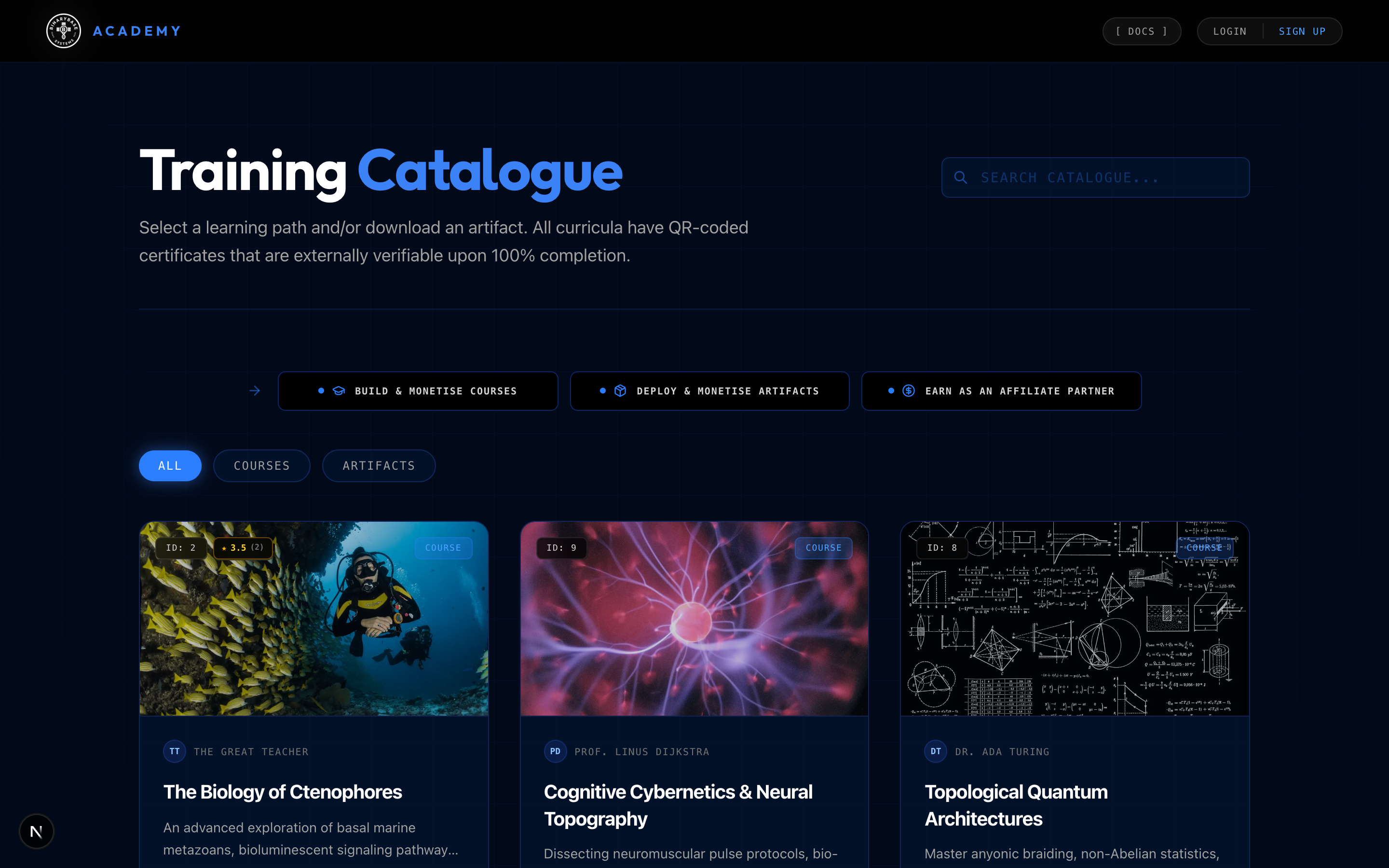
1.1 The Course Catalog & Enrolling
Browse the active academy catalog at https://academy.binarybase.systems to explore a wide spectrum of masterclasses and hands-on tracks: from low-level systems engineering (Rust, Go, Python, C++) and computational sciences to digital economics, systems thinking, architecture strategy, and technical leadership.
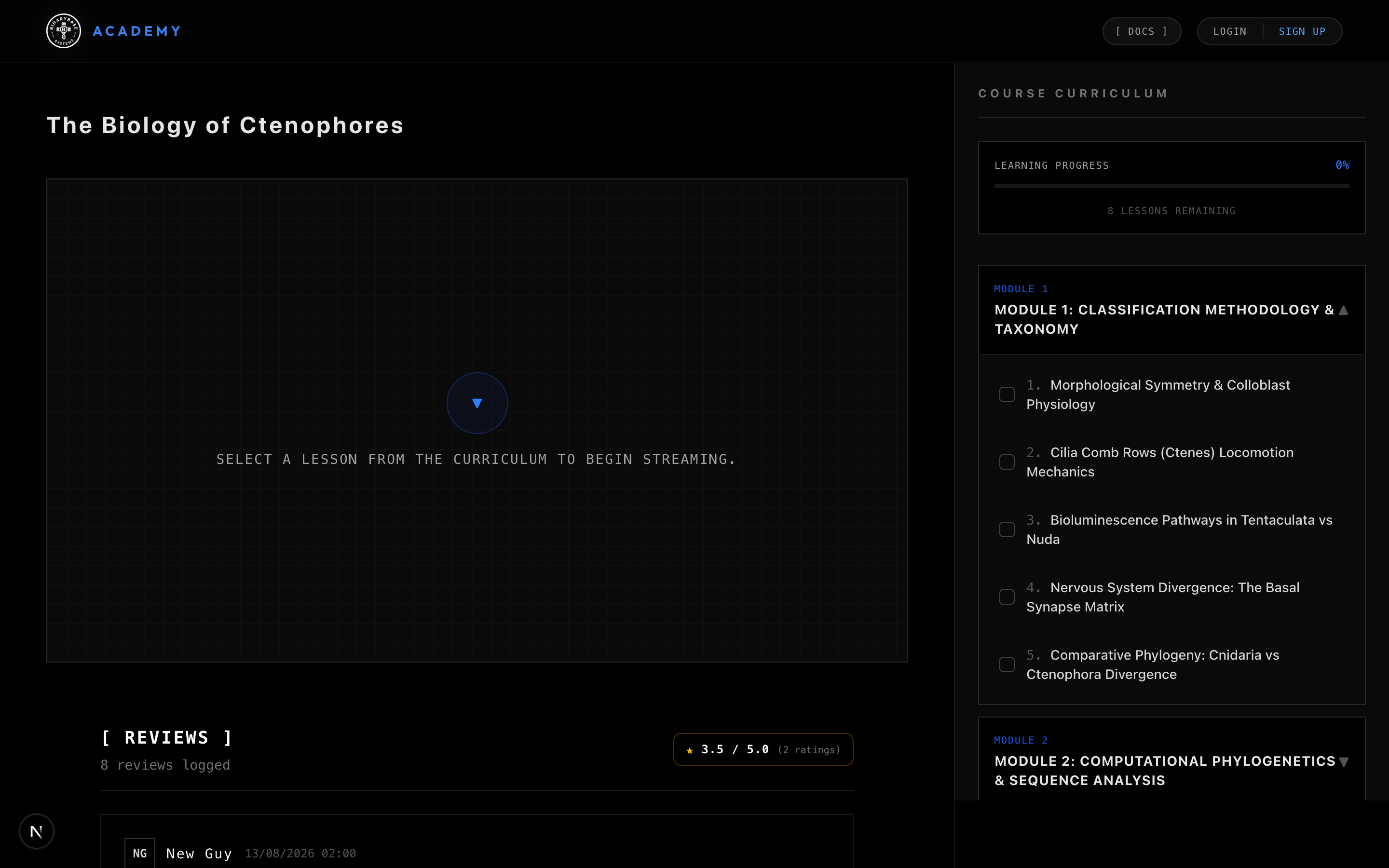
1.2 Course Curriculum & Syllabi
View the detailed module breakdown, lesson structures, student reviews, and overall course ratings before enrolling.
1.3 Geo-Aware Multi-Rail Checkout Options
When enrolling in a course or acquiring a digital artifact, the terminal automatically adapts to your geographic location:
- Automated Geo-Routing:
- For Learners in Nigeria & African Countries: The primary checkout terminal automatically presents pricing in Nigerian Naira (NGN), payable via domestic debit cards, bank transfers, or USSD.
- For International Learners Worldwide: The primary checkout terminal automatically presents pricing in US Dollars (USD), payable via global Visa, Mastercard, American Express, or Apple Pay.
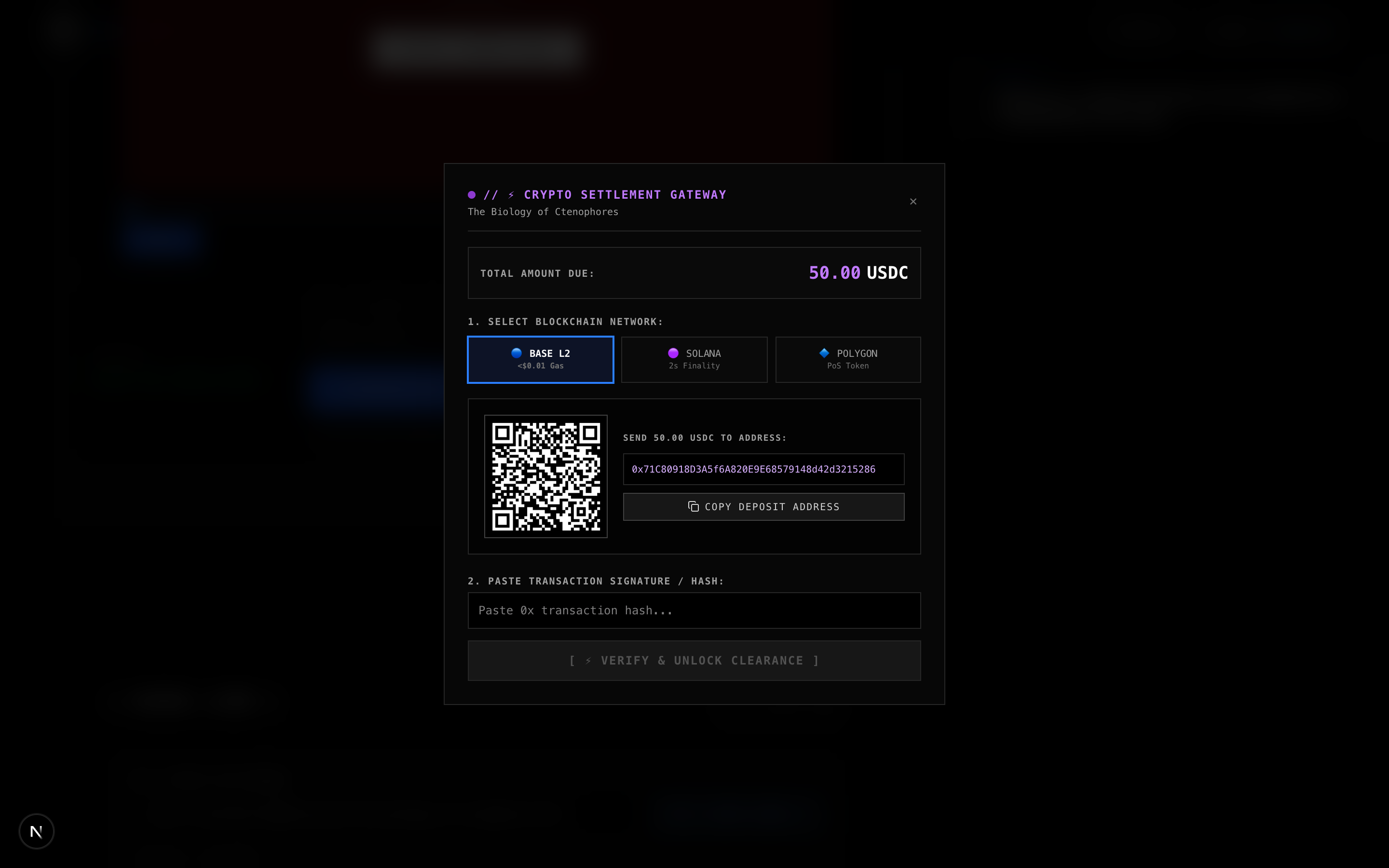
- ⚡ Universal Web3 Stablecoin (USDC):
Regardless of your geographic location, every learner can click `⚡ Or pay with crypto stablecoin (USDC)` on the checkout terminal. This generates a dynamic invoice and QR code across Base L2, Solana, or Polygon. Transfer the exact USDC amount from your wallet (Phantom, Coinbase Wallet, MetaMask) and paste your transaction hash for instant, 0-second clearance!
1.4 Applying Promotional Discount Codes
- Coupon Entry: Type your discount code (e.g.
ALPHA50) into the `[ ENTER CODE... ]` box on the checkout terminal. - Instant 100% Free Promo Bypass: If you have an authorized 100% discount scholarship or launch promo code, the system validates the code and grants instant enrollment without requiring card entry or blockchain transfers!
1.5 The Student Command Center & Orientation Tour
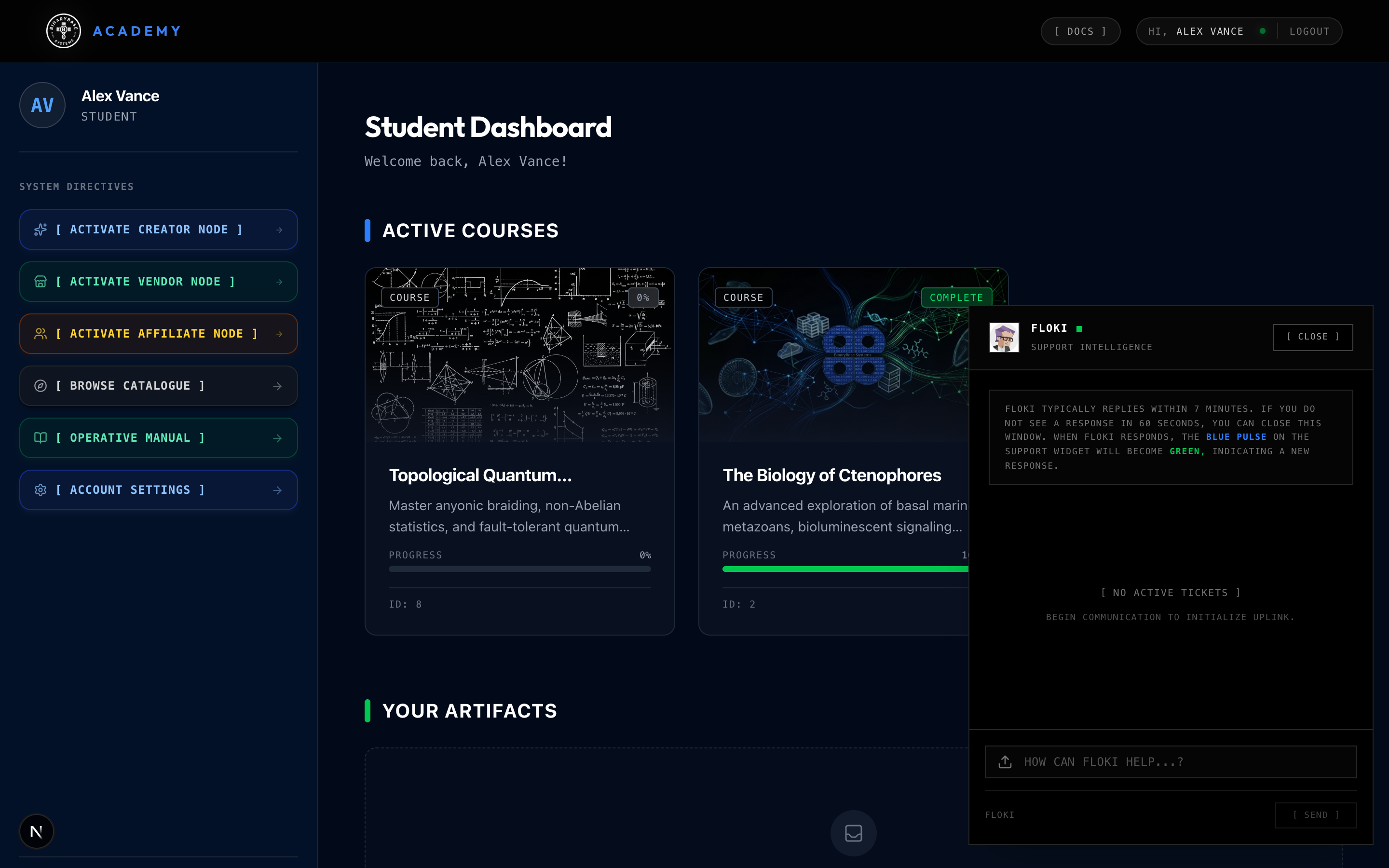
When you sign in, your Command Center dashboard is your operational home base:
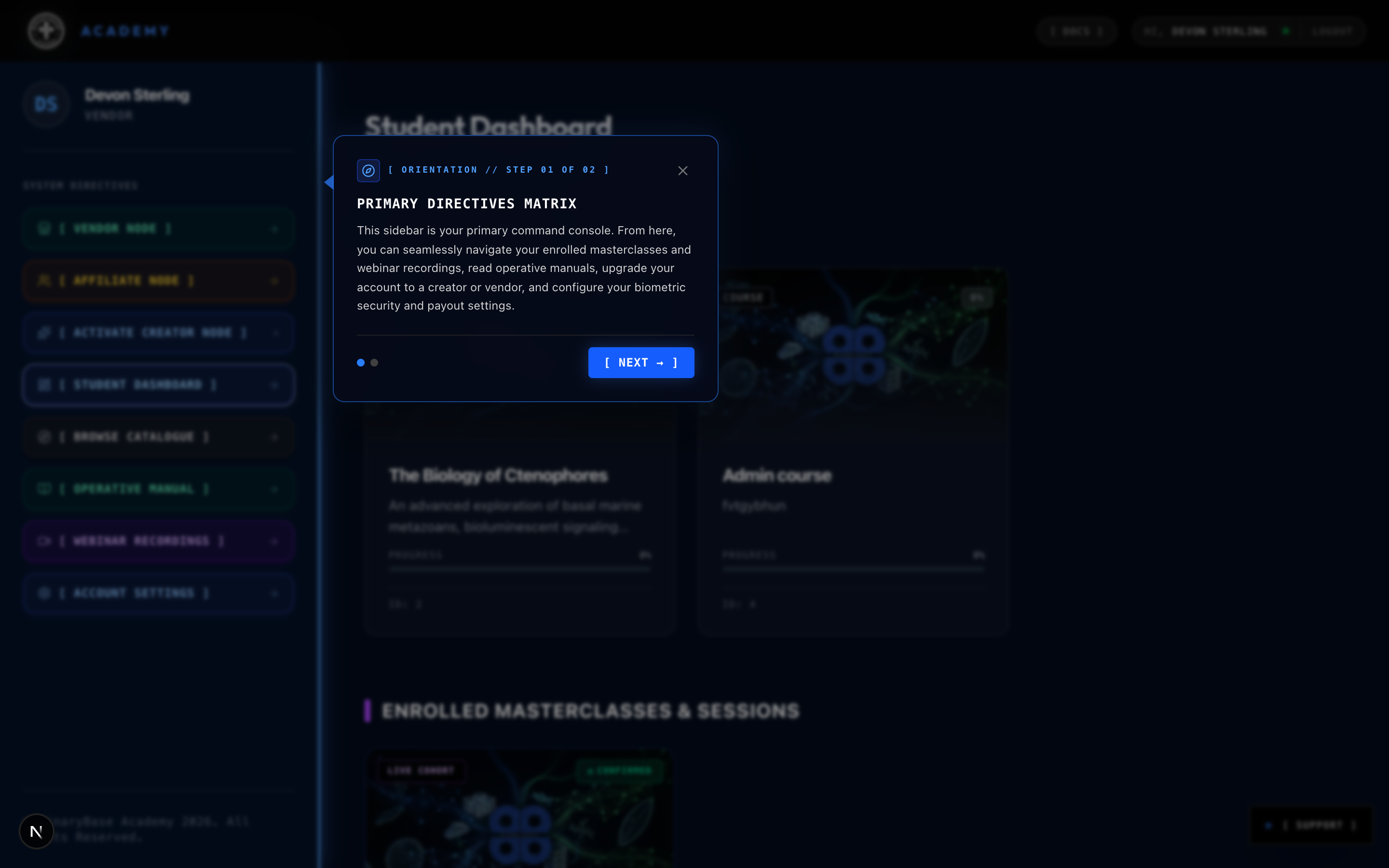
- Operative Orientation Tour: A welcoming, 2-step interactive walkthrough introduces first-time students to the platform. Step 1 points to your sidebar (the Primary Directives Matrix) to show you where to access your courses, recordings, manuals, upgrades, and settings. Step 2 shows you how to come back to your student dashboard from anywhere on the academy arm.
- The Primary Directives Matrix: Located in your sidebar, this console gives you direct access to your learning materials and lets you explore upgrading seamlessly to an affiliate partner, artifact vendor, or course creator profile.
- Enrolled Courses: View active courses and resume lessons with a single click.
- Purchased Artifacts: Access and download private software packages, architecture blueprints, and templates.
- Certificate Vault: View, download, and share your verified graduation certificates.
1.6 The Command Center Recall Protocol
Whenever you are outside this dashboard, as long as you are on the academy arm (such as browsing the public course catalog, reading research publications, or inspecting an instructor's profile), you can always return home instantly.
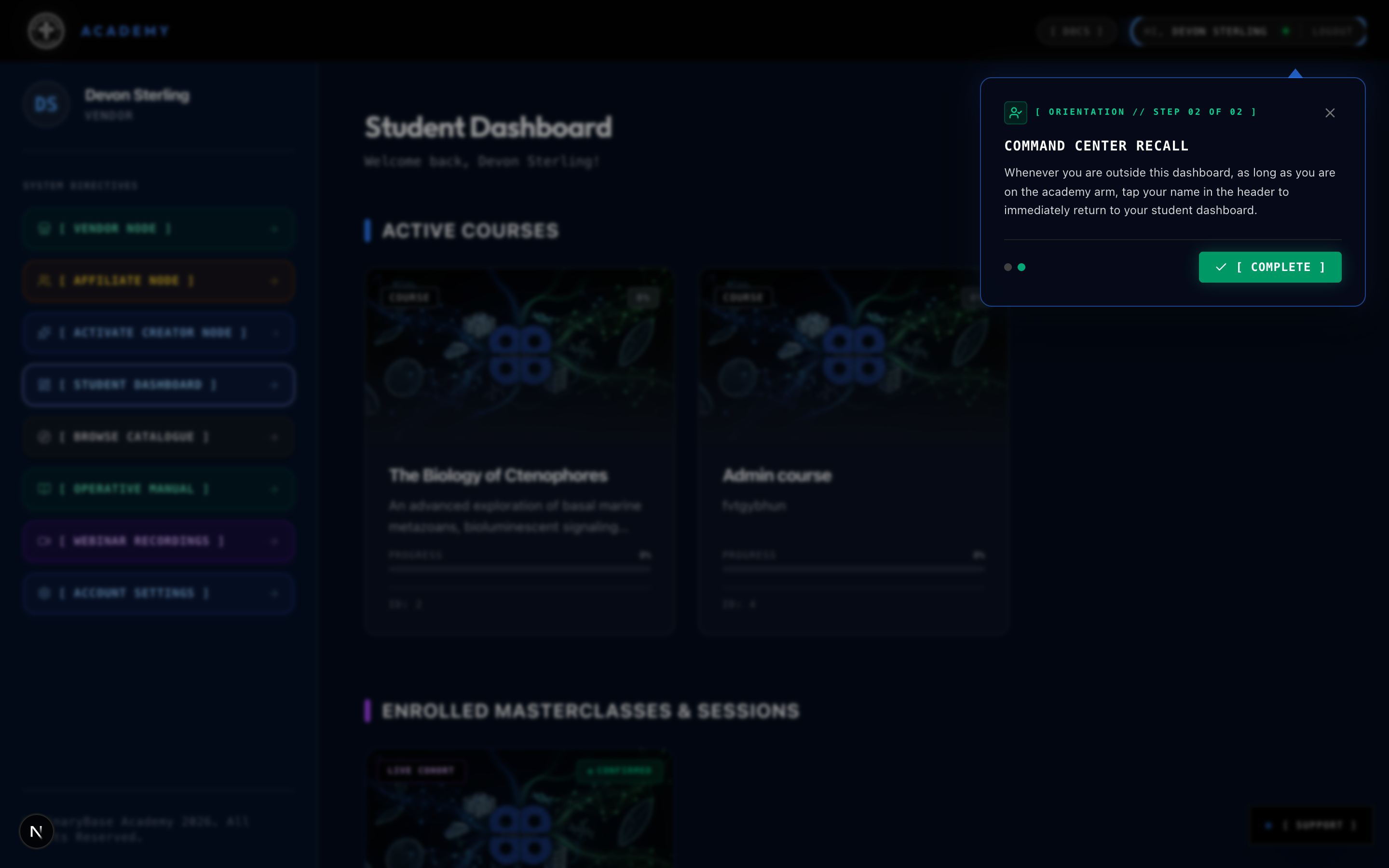
Simply tap your name in the top navigation header to jump straight back to your student dashboard.
2. Hardware Biometrics & Instant Passkey Access
Passwords are easy to forget and slow down your focus. BinaryBase Academy lets you secure your account using the physical biometric sensors already built into your personal devices:
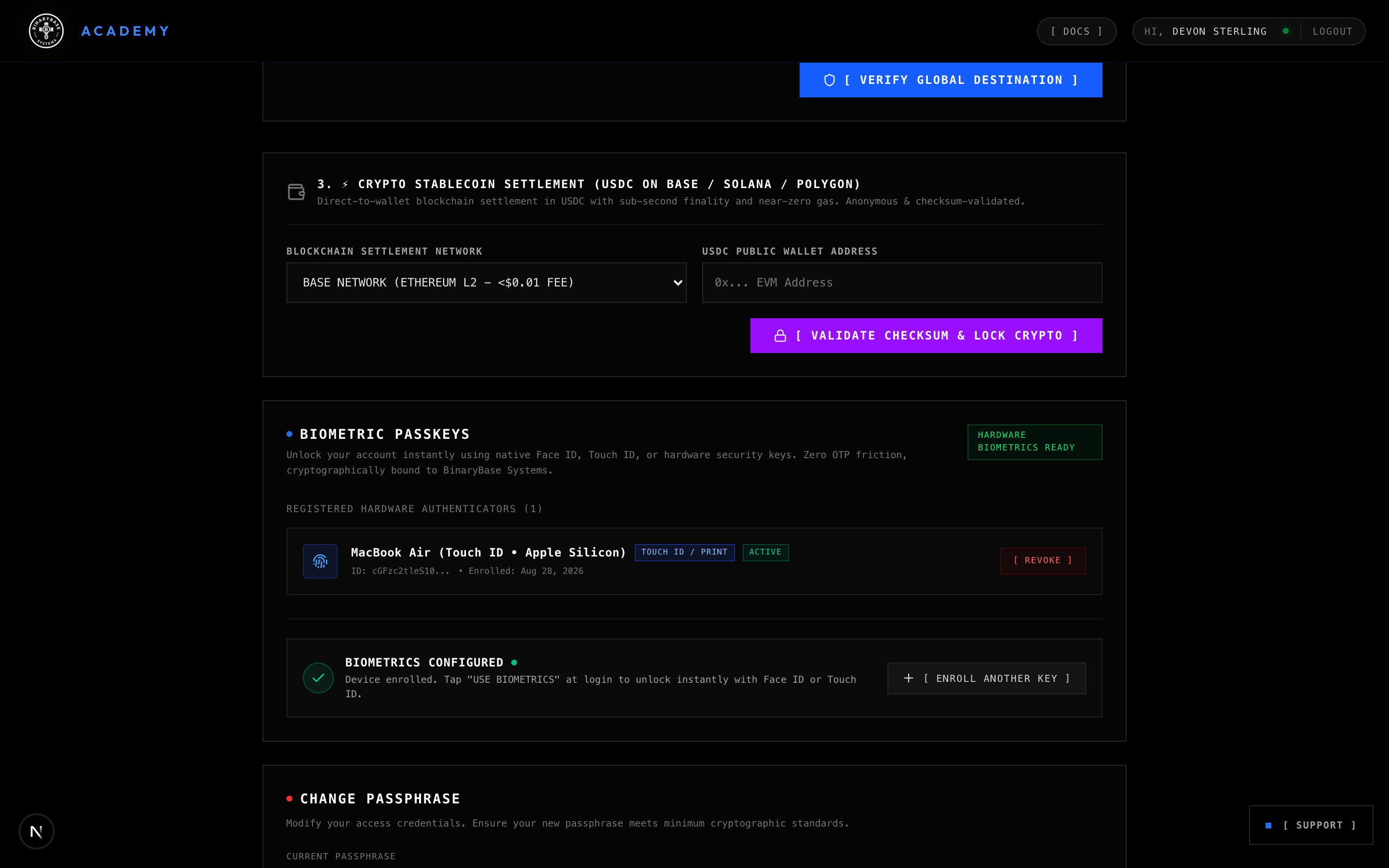
- Supported Authenticators:
- Apple Hardware: Use Touch ID on your Mac or Magic Keyboard, and Face ID on your iPhone or iPad.
- Android Devices: Use your phone's built-in Fingerprint sensor.
- Windows & PC: Use Windows Hello (facial recognition or fingerprint) or plug in a hardware USB security key (such as a YubiKey).
- Effortless 1-Tap Setup: Visit your Settings (
/settings) and click Register This Device. The platform automatically recognizes your operating system and biometric capabilities, guiding you through a smooth, single-tap confirmation. - Instant Passwordless Unlock: Next time you return to the academy, tap Unlock with Biometrics on the login terminal. A quick scan of your fingerprint or face logs you in instantly with zero password fatigue.
- Cross-Device Sync: If you use Apple iCloud Keychain or Google Password Manager, your passkey automatically syncs across your devices so you can sign in effortlessly from both your laptop and mobile phone.
- Safe & Simple Revocation: Upgrading to a new phone or retiring an old laptop? You can remove old passkeys anytime with a single click in your settings without compromising your account.
3. The Interactive Coding Sandbox
When you open a lesson with an interactive lab, BinaryBase Academy provides a developer environment right in your browser:
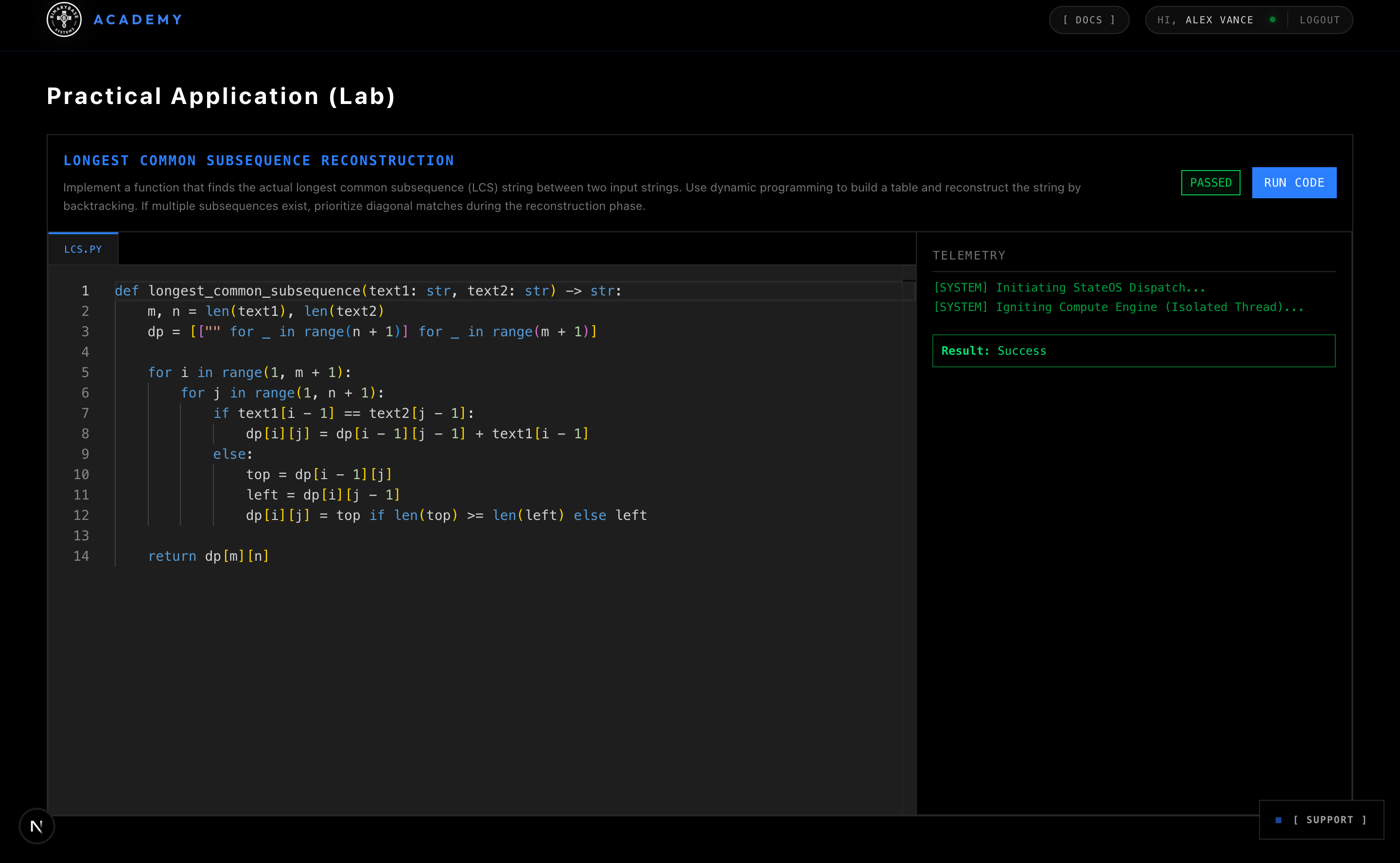
3.1 Multi-File Tree (VFS)
- Browse and switch between implementation files, configurations, and test helpers from the top bar of the lab interface.
- Files marked with a lock icon are read-only scaffold references.
3.2 VS Code-Grade Code Editing
- Code editing equipped with syntax highlighting and language-specific indentation rules.
3.3 Running & Validating Code
- Write your implementation to solve the challenge presented by your instructor.
- Click [ RUN CODE ].
- Watch the live terminal telemetry output:
- Stdout / Stderr: Compiler outputs and print statements.
- Test Verdict: Instant verification of whether all unit tests and validation suites passed. If any test fails, you must revise your implementation and re-run your code before advancing to subsequent lessons.
4. Verified Certificates & Credentials
4.1 Minting Your Verified Certificate
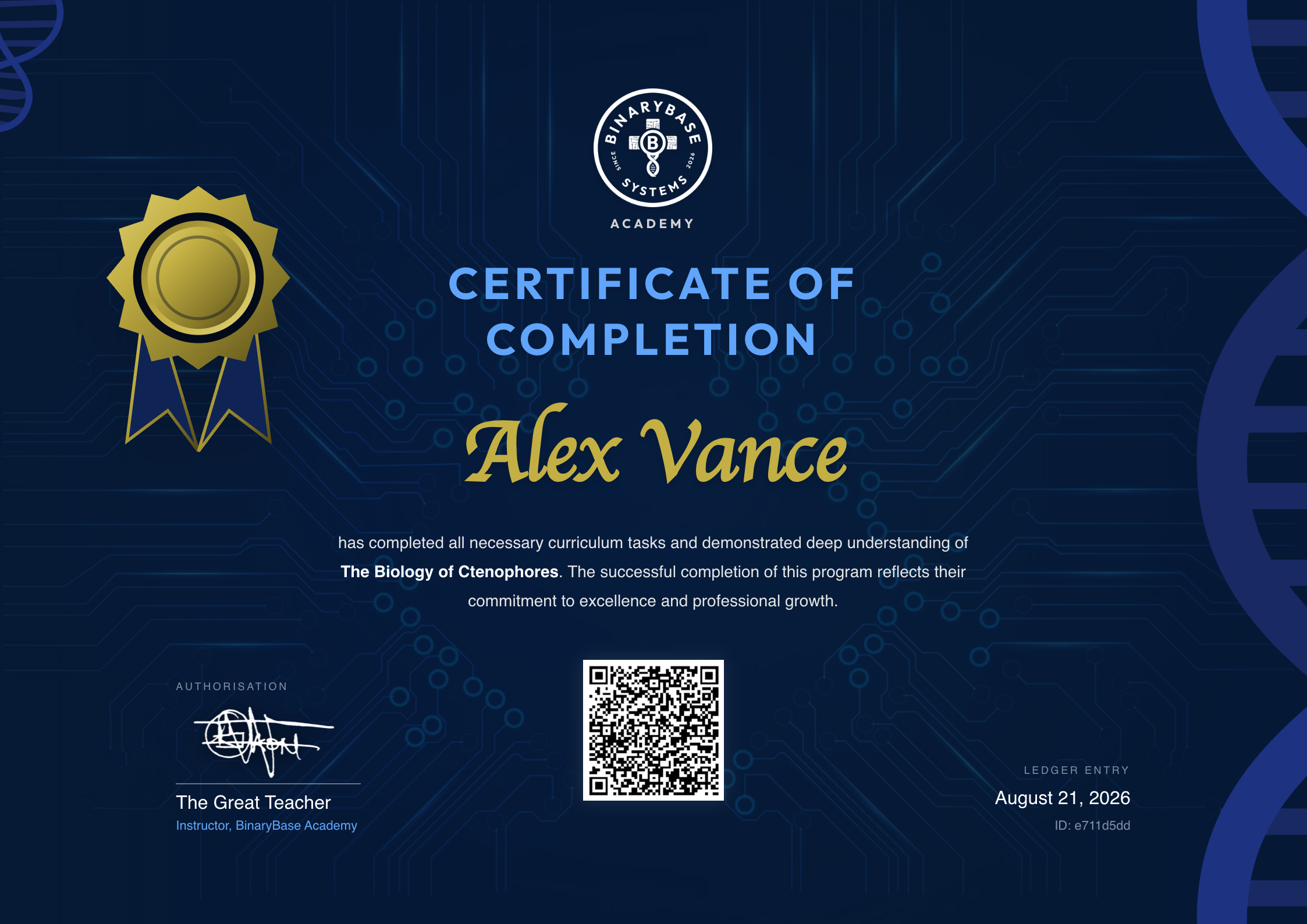
- When you complete 100% of a course's lessons, quizzes, and required coding challenges, the platform automatically mints your Verified Certificate.
- Each certificate includes:
- Your registered student name.
- The instructor's verified hand-drawn signature and title (defaults to Instructor, BinaryBase Academy, or a custom title specified exclusively by administrators, such as *Lead Curriculum Architect*).
- A unique, cryptographically secure verification ID and public verification URL.
- A high-density, scannable QR code directly on the certificate that immediately resolves to the official verification endpoint for instant proof of completion when shared on LinkedIn, CVs, and professional portfolios.
4.2 Instant Public Verification & Cryptographic Ledger
Every minted certificate is permanently recorded on the sovereign verification ledger:
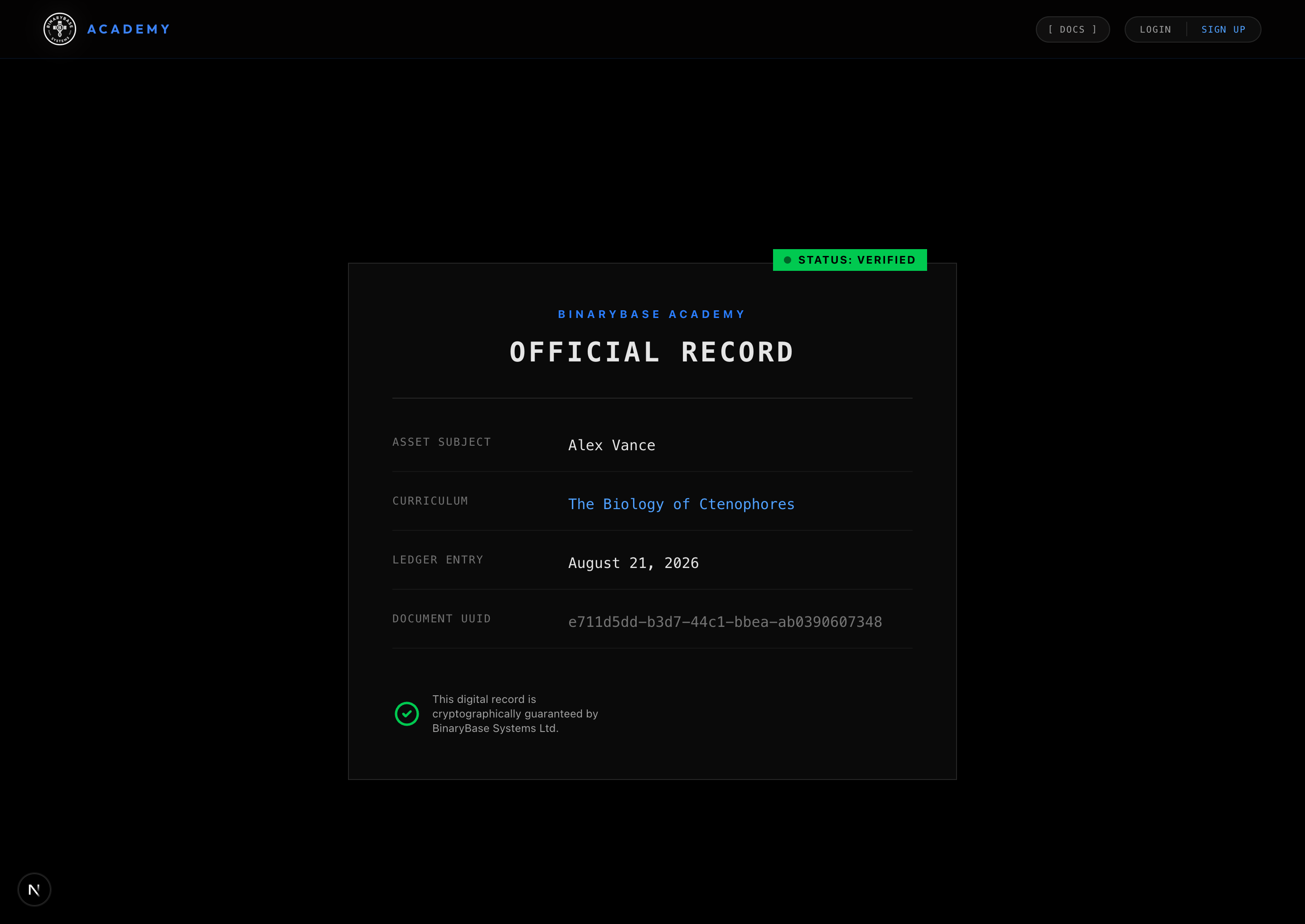
- Public Verification Endpoint: Anyone (recruiters, employers, peer engineers) can scan the QR code or visit
https://academy.binarybase.systems/verify/[certificate-uuid]to view the official record. - Tamper-Proof Ledger Record: Confirms the student identity, completed curriculum, date of clearance, and verified document UUID directly from the platform's central registry.
5. Attending Live Webinar Masterclasses & Mentorship Studios
Beyond self-paced courses, BinaryBase Academy connects you directly with instructors and mentors through live, interactive webinar masterclasses and 1-on-1 mentorship sessions:
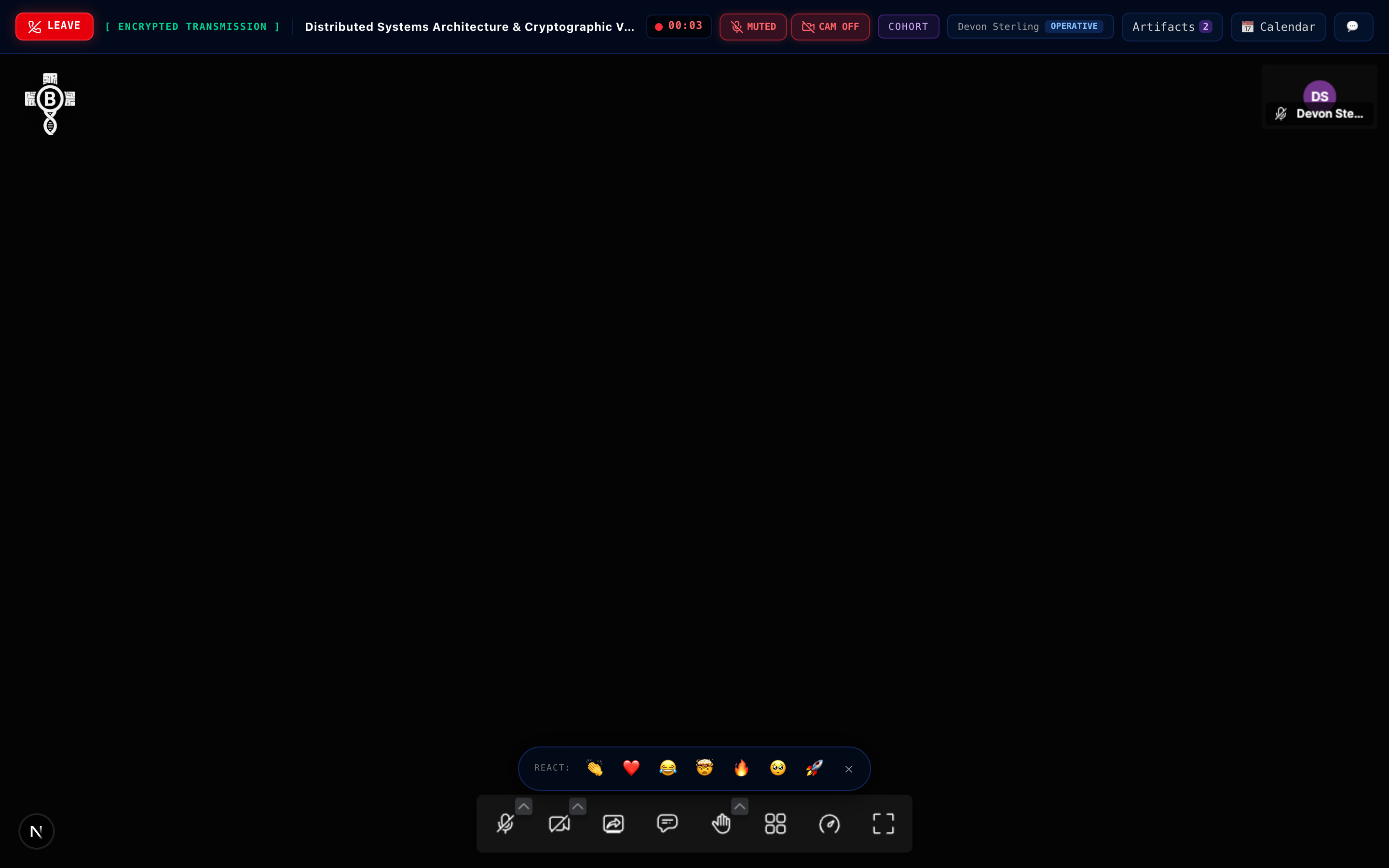
- Entering the Studio: Once enrolled or booked, open your session link (
/webinars/[slug]/live/[bookingId]) from your email confirmation or directly from your Command Center dashboard. - Top Studio Bar & Red Leave Button: The top bar displays your session title, live timer, and session format. When the workshop concludes or you need to exit, tap the crimson LEAVE button to cleanly end your connection and return to your dashboard.
- Reliable Mic & Camera Controls: If your instructor invites you to speak or ask a question, tap the Mic and Cam buttons in the top HUD bar. These controls respond instantly and reliably, even on mobile browsers.
- Floating Emoji Reactions: Share your enthusiasm, appreciation, or excitement in real time! Tap the reaction pill to send floating emojis across the screen. On mobile, the reaction dock is carefully placed so it never covers moderator alerts or important notifications.
- Live In-Studio Polls: When your instructor launches a poll to test a concept or gather opinions, vote directly on your screen with a single tap and watch live results unfold.
- In-Studio Tactical Chat: Ask questions, share insights, and chat with fellow operatives in the slide-out Chat Drawer without distracting popups or third-party watermarks.
- Companion Workshop Artifacts: If your instructor attaches starter code, architecture diagrams, or templates to the workshop, open the Artifacts Drawer to inspect or download materials right inside the studio.
6. Getting Help: The Real-Time Support Dispatcher
Need assistance or encountering an issue?
- Click the floating [ SUPPORT ] widget in the bottom-right corner of your Student Dashboard or active lesson environment.
- Communicate directly with platform and support engineers. (To provide instructor feedback or rate courses, operatives engage directly via the course review and rating system upon completing their curriculum.)
7. In Conclusion...
True mastery comes from active practice. Whether you are exploring marine biology, experimenting with system architectures, or writing code in interactive sandboxes, learning by doing builds deep, lasting confidence. Every challenge you solve, question you answer, and concept you master turns curiosity into real capability.

Takeaways...
- Learn by Doing: Concepts stick best when you put them into practice; jump into interactive exercises and try things out firsthand.
- Grow with Feedback: Hints, test results, and reviews are there to support you; use them to learn, adapt, and improve at your own pace.
- Share Your Verifiable Completion: Proudly share your certificate and verification link on LinkedIn, your resume, or your portfolio so anyone can easily confirm your accomplishment with a single click.